
Instructor-led courses that contain classroom sessions (this generally includes classes being taught via web conferencing) require a Face-to-face activity. Once a Face-to-face activity is added to the course, you need to add sessions. In other words, there are two steps to follow:
-
Add a "Face-to-face" activity to your course.
-
Add sessions/dates to the "Face-to-face" activity
Both of these steps are described below.
Step-by-step Guide
To add the "Face-to-face" activity:
-
Go to the course in question
-
Turn editing on (if it is not turned on already)
-
Click the "Add an activity or resource" hyperlink
-
Double-click the "Face-to-face" activity from the list
-
Give the activity a name and review / edit the default settings as per your requirements
-
Generally speaking, we recommend you set the name to something general, such as "Classroom session" and the short name to something more descriptive, like "CPR / First Aid Class".
-
-
Click on the "Save and display" button at the bottom of the page
Once the "Face-to-face" activity is added, you can then add sessions/dates and specify other information like the location of the session, the instructor, the number of seats available, etc.
To add a session:
-
Make sure you are viewing the "Face-to-face" activity you created in the steps above. (If you followed the steps above, you are already viewing it. Otherwise, return to the topic outline for the course in question and click on the hyperlinked Face-to-face activity in question.)
-
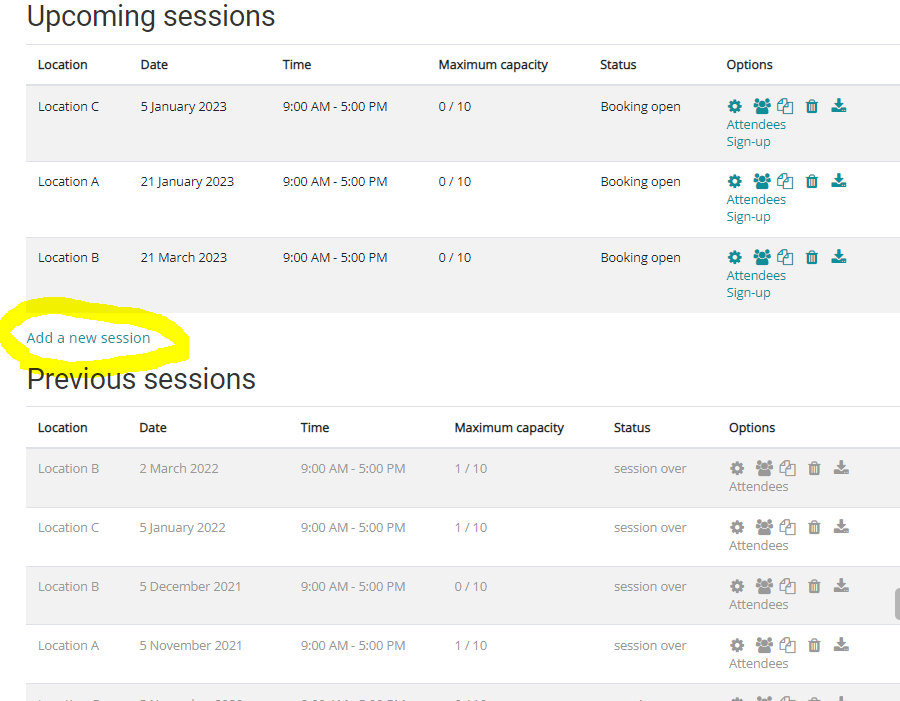
Click on the "Add a new session" hyperlink, which appears in the "Upcoming sessions" section
-
Alternatively, if sessions already exist, you can "copy" an existing session
-
-
Specify the start time (and finish time) and review / edit the default settings as per your requirements
-
Click on the "Save changes" button at the bottom of this page
-
Repeat for each classroom session
Important Notes
-
If sessions already exist in the face-to-face activity, it may be faster for you to simply duplicate (e.g. "Copy") an existing session and change its date rather than clicking on the "Add a session" link and starting from scratch each time.
-
If a single session has two or more dates and the participant needs to attend both dates in order to complete the course, you should only add one (1) session and click on the "Add a new date" button when configuring the session as per step 3 above. On the other hand, if a session is given once a month and a learner only has to attend one of the dates in order to complete the course, then you should repeat steps 1-5 for each session.