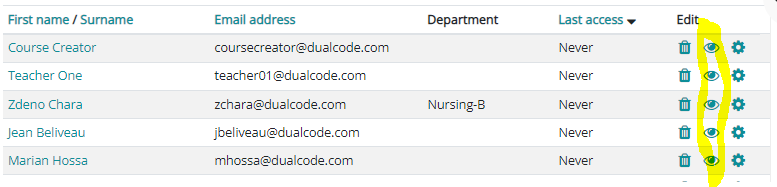
It is recommended to suspend users when you no longer want them to have access to your learning environment rather than deleting them. That's because deleting a user is permanent: it deletes some of the user's history, such as their quiz and SCORM attempts, answers to feedback surveys, etc.. Their learning records are preserved, but this may still be against your organization's retention policy. A suspended user keeps everything and can be re-activated at any time.
What Happens When a User Is Suspended
-
The user can no longer log in.
-
Nothing else changes. Their course enrolments, program membership, grades and learning records stay exactly as they were. Suspending a user does not remove them from programs or courses. With that said, they can no longer access the course because they cannot log in the system.
-
Some reports automatically leave out suspended users. Custom reports do not: they show suspended users unless you filter them out. To leave them out, add the condition User > Suspended and set it to No. See Managing Custom Reports.
-
Re-activating the user restores their access, and everything is as they left it.
Automatic suspension: If your learning environment is integrated with your organization's SSO or HRIS, certain integrations can automatically suspend users when your organization offboards them. Which integrations support this depends on how your learning environment is set up.
If you are sure you want to permanently remove a user instead, see Deleting a User.
Step-by-step Guide
To suspend a user:
-
Go to Site Administration > Users > Accounts > Browse list of users
-
Find the user in question
-
Click the eye icon in the "Edit" column next to the user you want to suspend
If the eye icon has a line through it and the user's information in the "Browse list of users" page is grayed out, the user is already suspended. You can re-activate the user by simply clicking on the eye icon again.
To suspend multiple users at the same time, see "Uploading users".